A booking can slip away in the gap between "the couple called" and "the advance came in", when the enquiry sits in WhatsApp, the quote is typed again from scratch, and nobody is sure who still owes what.
Eventik keeps that whole journey in one place. This guide walks through the photography CRM side of Eventik step by step: adding a lead, moving it through your pipeline, sending an estimate from your packages, converting it into a client and an event, and recording every payment until the invoice is paid in full.
Step 1: Add every enquiry as a lead
Open Leads from the studio menu. This is where every enquiry lives, whether it came from a phone call, Instagram or a walk-in.
- Click Add Lead.
- Enter the Full Name and Email Address (both required) and the 10-digit Phone number of the person enquiring.
- Choose the Event Type (also required) and, if they know it, the Event Date. You can leave the date as "Not decided yet".
- Pick the Source: Website, Referral, Social Media, Walk-in, Portfolio or Other.
- Add their Estimated Budget and a short Description of what they asked for.
- Click Save. The Status starts at New unless you pick another one.
If your studio plan includes a portfolio page, enquiries sent through it land in Inquiries under My Studio → Portfolio. Open one and click Add to leads to turn it into a lead, so you never copy details by hand.
Step 2: Move leads through your pipeline
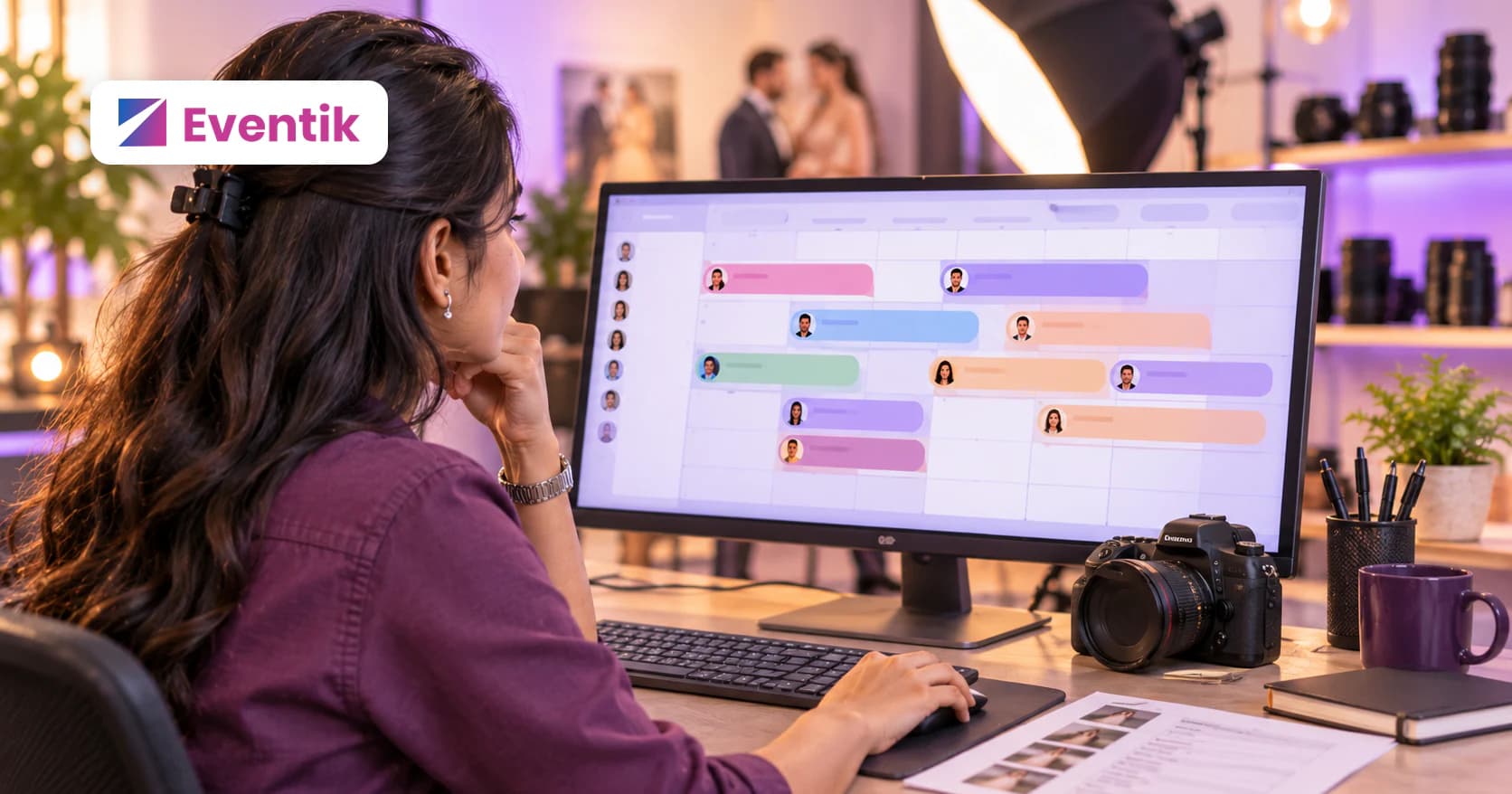
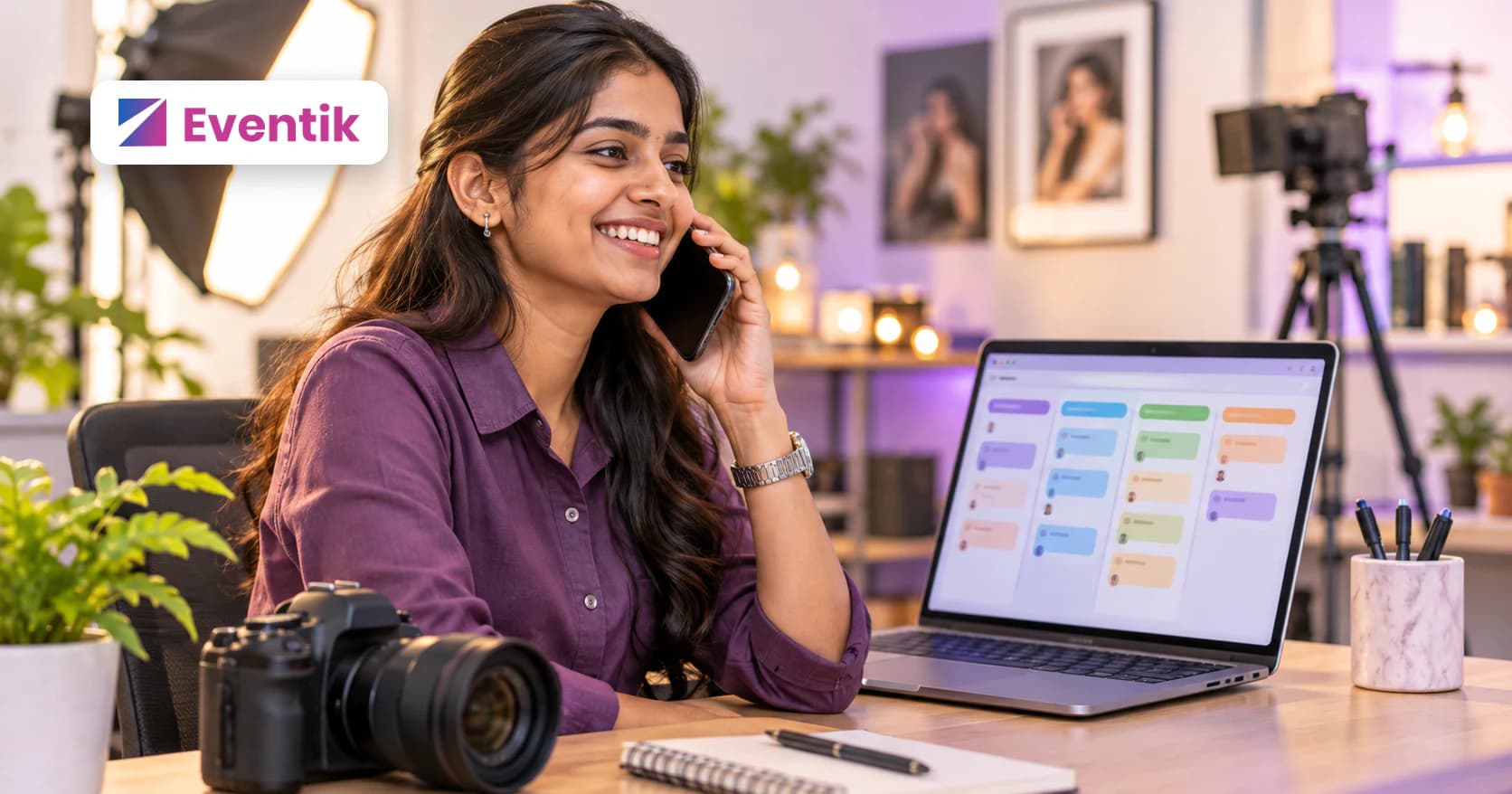
Every lead has a status, shown as a coloured pill in the list. While a lead is still open, click the pill to change it, with no need to open the lead.
- New: the enquiry has just come in.
- Qualified: you have spoken to them and the date, budget and type of shoot fit your studio.
- Proposition: you have sent them a quote and are waiting for an answer.
- Won: they booked. This happens when you convert the lead into a client (Step 4).
- Lost: they chose not to go ahead.
Use the All statuses filter at the top of the list to see, for example, only the leads at Proposition, or type in Search leads... to look one up. Won and Lost are final: once a lead is closed, its status can no longer be changed.
Step 3: Build an estimate from your packages
Before you send your first quote, set up your packages once under My Studio → Packages. Each package has a Package name, Category, Short tagline and Duration, plus Crew included, Deliverables and anything Also included. You build it once and reuse it on every estimate.
- Go to My Studio → Estimates and click New Estimate.
- Enter an Estimate Title, such as "Wedding Package".
- Under Recipient (optional), switch between Client and Lead, then pick who the quote is for.
- Under Services, click Add from library to drop in a saved package, or click Add custom service and enter a Service Name, Qty and Unit Price.
- Set the Tax Rate (%) and any Discount. The Subtotal and Total update as you go.
- Pick a Valid Until date, add any Notes, and click Save.
Click an estimate to open it in a new tab with Save as PDF and Print buttons, then share it with the couple yourself. Estimates have their own statuses: Draft, Sent and Rejected, which you set yourself from the status pill, and Approved, which the estimate gets when it becomes an invoice.
Step 4: Convert the lead into a client and an event
When the couple says yes, turn the lead into a client. There are two ways to do it: select Won from the lead's status pill, or open the lead with the edit icon and click Convert to Client.
- Confirm Convert to client. The lead becomes a client, is marked Won, and its estimates move across to the new client.
- Eventik then asks Create an event? Create their first event straight away, or click Cancel and do it later.
- If you create it now, the event form is already filled in with the client, an event name, the event type and, if the lead had one, the date.
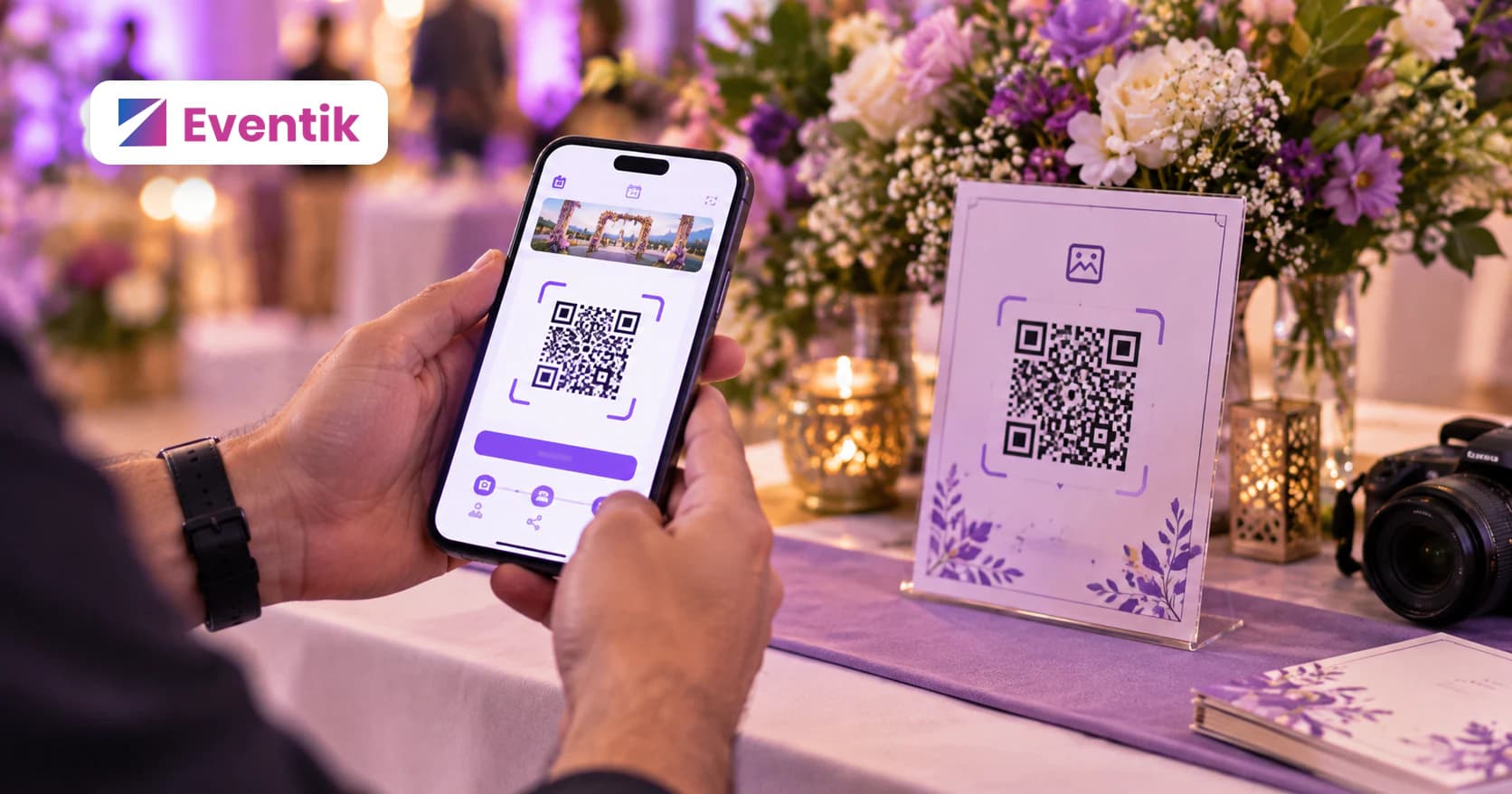
The event is where you upload the photos and share them with guests by QR code or link. On a paid studio plan you can also assign your team to it. See how it works.
Step 5: Turn the estimate into an invoice and record payments
Back in Estimates, an estimate for a client that is still Draft or Sent shows a Convert to invoice action. Confirm it and the line items and totals carry over to a new invoice for that client, and the estimate is marked approved. (An estimate sent only to a lead needs a client first, so convert the lead before you invoice.)
- Go to My Studio → Invoices. While an invoice is a Draft, click Mark as sent once you have shared it with the client.
- When money comes in, click Record payment.
- Enter the Payment Amount and Payment date, choose Cash or Online (an online payment can carry a Reference, such as a UPI or transaction ID), add an optional Note, and click Record Payment.
- Every payment appears under Payments recorded, with Paid so far and Amount due shown at the top.
Each invoice in the list shows how much is still due, and its status pill reads Draft, Sent, Partial, Paid or Overdue. Once nothing is left to pay, the payments window says the invoice is paid in full. The cards at the top of the Invoices screen show what is Outstanding, what was Paid This Month, Pending Estimates and anything Overdue, so you always know where the studio stands.
Frequently asked questions
What is a photography CRM?
A photography CRM is software that keeps enquiries, clients, quotes and payments in one place. In Eventik, leads move from New to Won, estimates are built from your saved packages, and invoices track every payment until they are paid in full.
Can I send an estimate before the lead becomes a client?
Yes. When you create an estimate, choose Lead as the recipient. When you convert the lead, its estimates move across to the new client, and you can then turn the estimate into an invoice.
How do I mark a lead as booked?
Select Won from the lead's status pill, or open the lead and click Convert to Client. Eventik creates the client, marks the lead Won and offers to create their first event.
Can I record an advance and the balance separately?
Yes. Record each payment on the invoice with its amount, date and method, plus a reference for online payments. The invoice keeps a running Amount due until it is paid in full.
Where do enquiries from my portfolio page go?
On a studio plan with a portfolio page, they arrive in Inquiries under My Studio → Portfolio. Click Add to leads to turn one into a lead, then work it like any other lead. See all features.