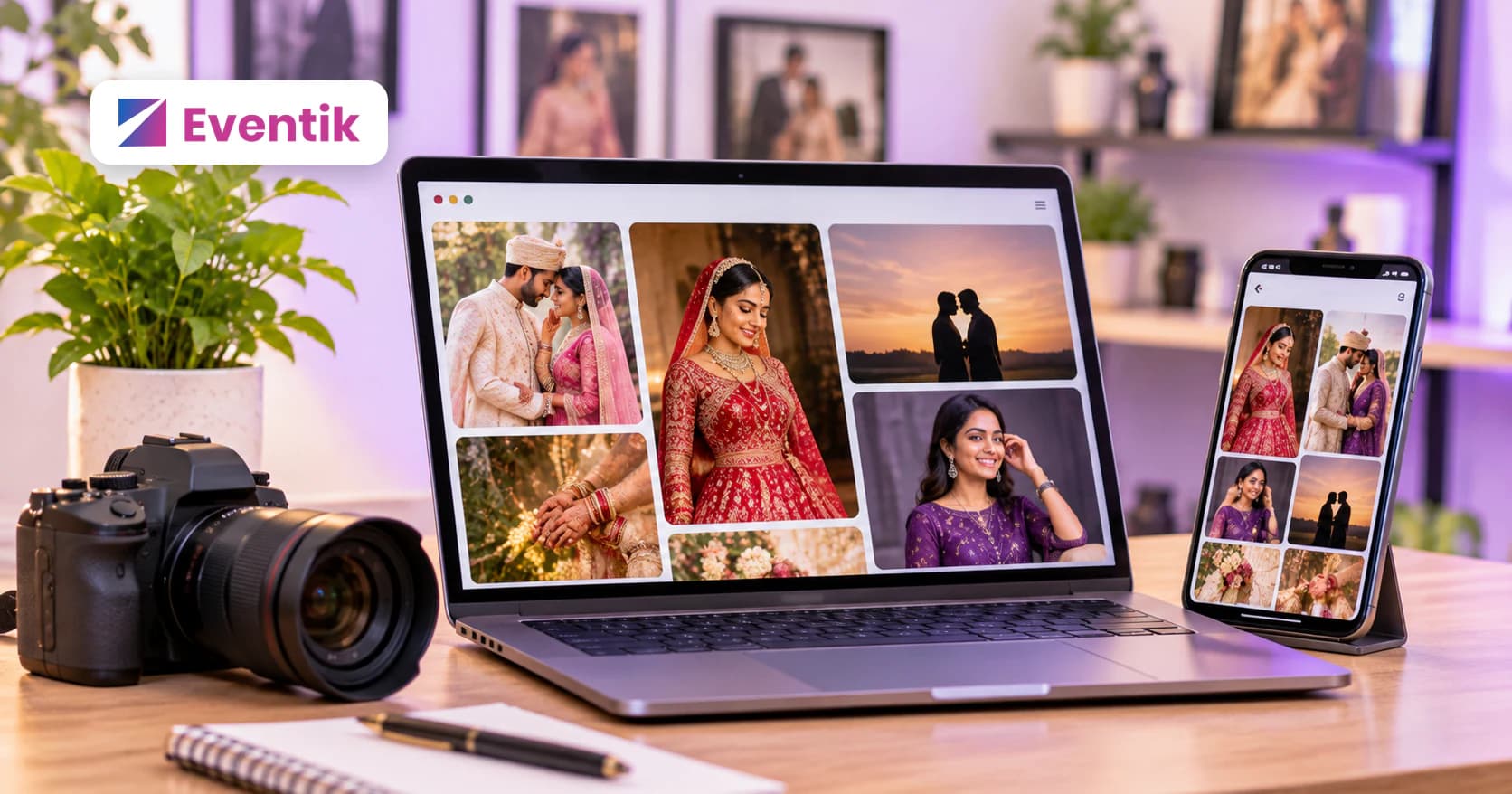
Most couples and clients look at your work before they ever call you. A photography portfolio website gives them one clean link to see your best photos, read what you offer and send you a message, without you building a website from scratch.
This guide shows how to build your studio's portfolio page in Eventik, fill each section, publish it, and move the enquiries it brings in to your leads list.
Where to find the portfolio builder
Open Studio Profile from the menu. The builder lives in the Portfolio tab of My Studio, next to Profile, Team, Invoices, Estimates and Packages. Only the studio owner (the admin account) can open it.
The portfolio page needs a studio plan that includes the Portfolio page. If your plan does not include it, the tab shows a Studio Portfolio screen with an Upgrade plan button instead of the builder. The first time you open it on a plan that does, Eventik sets up your page with starter text and images.
Set your branding and choose your sections
The left side of the builder is the Branding card. Your Studio Name is read only here. To change it, use the Change in Studio Profile link.
- Type a short Tagline, for example "Moments that stay forever".
- Under Public URL, choose the name for your page address. Use lowercase letters, numbers and hyphens, such as your studio name.
- Click Save. If someone else already has that name, you will see "That public URL is already taken", so try another.
Below that is the Sections list: Hero, About, Gallery, Services, Testimonials, Contact and Footer. Click a section to edit it. The eye icon next to each one (except Footer) shows or hides that section on your public page.
In Hero, pick a Hero Background Image from the ready options or upload your own with Choose File, then fill in Heading, Sub Heading and CTA Text, and click Save Hero. In About, add an About Image, a Heading, your About Text and up to three optional stats (for example "500+" and "Events Shot"), then click Save About.
Add your best work to galleries
The Gallery section is the heart of an online photography portfolio. You can create up to five galleries, for example Weddings, Pre-wedding and Portraits.
- Click Add Gallery, type a name such as "Weddings" and click Create.
- Click the gallery to open it, then drop your photos on the box that says Drop photos / videos here or click to browse.
- To show a film, paste a link in Paste YouTube or Vimeo URL and click Add.
- Drag photos and galleries to change their order. Use the eye icon to hide a gallery, or the bin icon to delete it.
Gallery changes save as you make them. Pick only your strongest frames and keep them current.
Add services, testimonials and contact details
- Services: click Add Service (up to five). Choose an icon, enter the Service name, an optional description and, if you like, a price with its currency. Each service has its own Save button.
- Testimonials: click Add Testimonial (up to five). Add the client's photo, Name, city or country, their words and a star rating under Select Rating, then click Save. These show on your page as Client Reviews.
- Contact: enter your Email, Phone and Studio Address, then click Save Contact.
- Footer: upload your Studio Logo (a square image works best), add your Instagram, Facebook, YouTube and LinkedIn links under Social Info, and click Save Footer.
Keep your phone number and email correct, so a client who likes your work can reach you easily.
Turn portfolio enquiries into leads
Your public page ends with a Get in Touch form. A client fills in their name, email, Phone / WhatsApp Number, Event Type, Event Date, Budget Range and a message about their plans.
Every message lands in Inquiries, which you open with the Inquiries button at the top of the builder. A number on the button shows how many are new. Filter the list by All, New, Read, Replied or Archived, and open one to read it. Opening a new enquiry marks it as read.
- Reply straight away with WhatsApp, Call or Reply via email.
- Click Add to leads. The client joins your Leads list with Portfolio as the source, and the button changes to View in leads.
- Click Mark as replied once you have answered, or Archive to file it away.
From there, follow the client through estimates and bookings, as shown in our leads to bookings guide. To see everything else Eventik does for studios, visit features.
Frequently asked questions
Which plan do I need for the portfolio page?
A studio plan that includes the Portfolio page. If your plan does not, the Portfolio tab shows an Upgrade plan option instead of the builder. See pricing for which plans include it.
How many galleries can I add?
Up to five galleries. You can also add up to five services and five testimonials.
Can I add wedding films to my portfolio?
Yes. Open a gallery, paste a YouTube or Vimeo link in Paste YouTube or Vimeo URL and click Add.
What happens when a client sends an enquiry?
It appears in Inquiries as a new message. Open it to reply by WhatsApp, call or email, then click Add to leads to move the client into your leads list.